SSD vs HDD: What's the Difference and Why Does Storage Type Matter?
When you're looking at a laptop or desktop computer, you may see specifications such as:
512GB SSD
1TB SSD
1TB HDD
But what do these terms actually mean?
And why can two computers with the same amount of storage feel very different to use?
The answer begins with understanding the difference between an SSD and an HDD.
Both are storage technologies. Both can be used to store your operating system, applications, documents, photos, videos and other files.
But they work in very different ways.
Let's break it down.
What is an SSD?
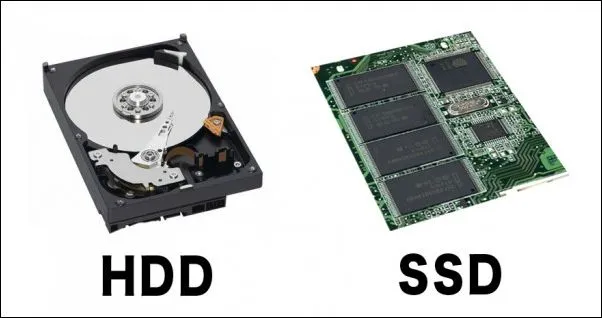
SSD stands for Solid State Drive.
Unlike a traditional hard drive, an SSD does not rely on spinning magnetic disks to store and access data.
Instead, it uses flash memory.
Because there are no moving mechanical parts inside a typical SSD, it can access data much more quickly than a traditional HDD.
SSDs are now common in modern laptops, desktops and other computing devices.
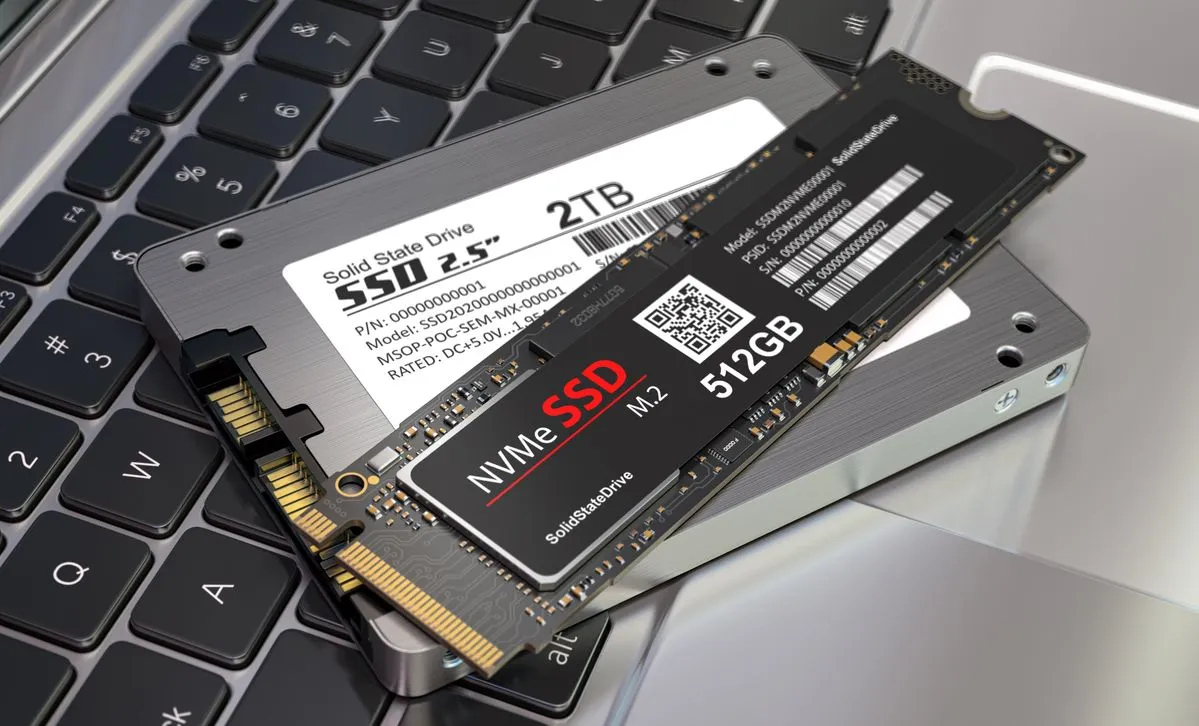
You may encounter different types of SSDs, including:
SATA SSDs
NVMe SSDs
PCIe-based SSDs
These can differ significantly in performance and interface.
What is an HDD?
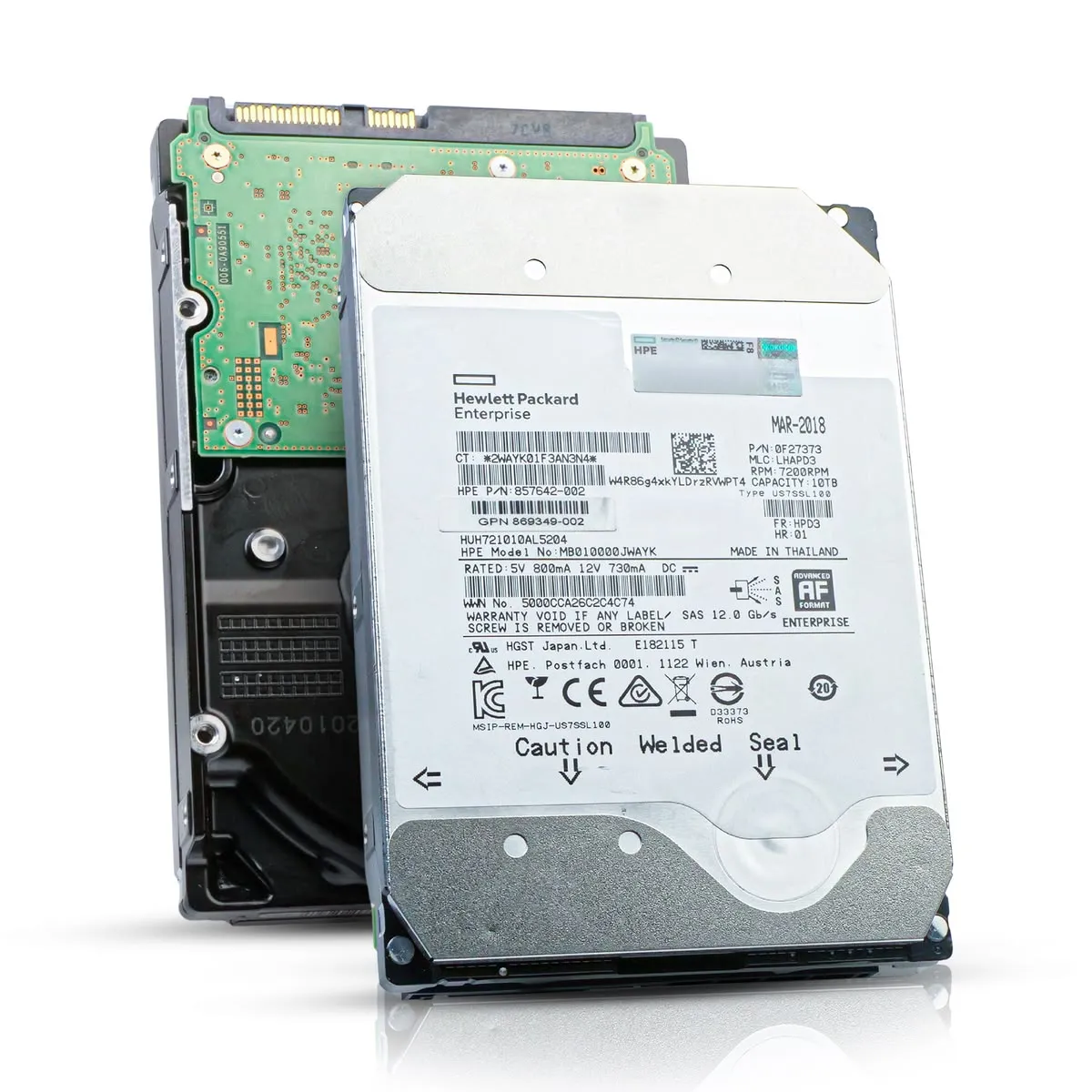
HDD stands for Hard Disk Drive.
HDDs use spinning magnetic platters and a mechanical read/write head to store and access data.
When your computer needs information from the drive, the mechanical components physically move to the appropriate location on the disk.
This mechanical design has been used for decades and remains useful for certain storage needs.
HDDs are particularly known for offering relatively large storage capacities at a lower cost per unit of storage than many SSDs.
SSD vs HDD: The basic difference
The simplest distinction is:
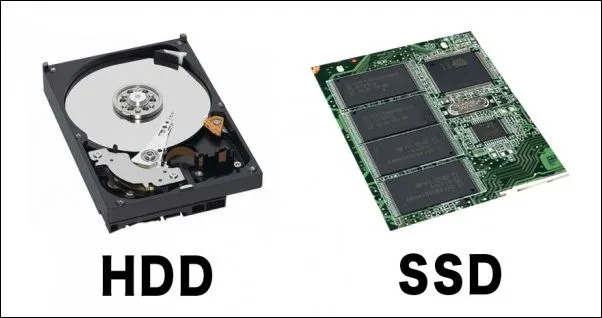
SSD = flash memory with no spinning mechanical disk.
HDD = spinning magnetic disks with mechanical components.
That difference in design affects several characteristics of the storage.
Speed
One of the biggest differences you'll notice is speed.
SSDs can generally access data much faster than traditional HDDs.
This can contribute to faster:
Operating system startup
Application launches
File access
File transfers
System responsiveness
If you've ever moved from an older computer with an HDD to a modern computer with an SSD, the difference can be noticeable.
The computer may feel much more responsive even when the processor and other components haven't changed dramatically.
However, not all SSDs perform identically.
A high-performance NVMe SSD can offer significantly different performance from a SATA SSD.
So even within the SSD category, the technology matters.
What is NVMe?
NVMe stands for Non-Volatile Memory Express.
It is a protocol designed specifically for high-speed storage devices using technologies such as PCIe.
You may therefore see specifications such as:
1TB NVMe SSD
or
512GB PCIe NVMe SSD
These drives can provide substantially higher transfer performance than traditional SATA-based SSDs, depending on the specific hardware.
But once again, the largest advertised speed isn't automatically the most important thing for every user.
For everyday activities such as browsing, documents and basic productivity, the difference between different high-speed SSDs may be less noticeable than the difference between an SSD and a traditional HDD.
Capacity: How much can you store?
Storage capacity is separate from storage speed.
You might see:
256GB
512GB
1TB
2TB
4TB
and more.
Capacity tells you approximately how much data the drive can hold.
For example, a 1TB drive can hold more data than a 512GB drive.
But capacity does not automatically tell you how quickly that data can be accessed.
This is an important distinction.
Capacity answers:
"How much can I store?"
Performance answers:
"How quickly can the system access or move that data?"
These are different questions.
Why can an SSD make a computer feel faster?
An SSD doesn't replace the CPU or RAM.
Instead, it improves the storage side of the system.
When the operating system, applications and files are stored on a fast SSD, the computer can access that data more quickly than it generally could from a traditional HDD.
This can make everyday interactions feel more responsive.
For example, you may notice improvements when:
Starting the operating system
Opening applications
Loading large files
Searching through files
Installing software
Moving data
But an SSD doesn't magically make every component faster.
If a computer has a weak processor, limited RAM or another bottleneck, changing the storage won't eliminate every performance limitation.
Again, the entire system matters.
Are HDDs still useful?
Absolutely.
The fact that SSDs are faster doesn't mean HDDs have become useless.
HDDs can still be useful when large amounts of storage are needed, particularly when storage capacity is a higher priority than maximum performance.
For example, someone managing a large collection of:
Photos
Videos
Backups
Archives
Documents
Media files
may find high-capacity HDD storage useful.
Many systems can also combine storage technologies.
For example:
SSD for the operating system and applications
plus
HDD for large files and archives.
This allows the system to benefit from fast primary storage while still providing substantial capacity.
SSD vs HDD: Durability
SSDs have an advantage in one important area: they don't contain the same moving mechanical parts found in traditional HDDs.
That can make them better suited to situations where a device may experience movement or physical shocks.
This is particularly relevant for laptops and portable computers.
However, SSDs are not indestructible.
Like all storage devices, they can fail.
Important data should therefore always be backed up regardless of whether it is stored on an SSD or HDD.
Power consumption
SSDs can also have advantages in power efficiency, although the exact difference depends on the specific hardware and how it is being used.
For laptops, storage efficiency can be one of many factors contributing to overall battery behavior.
But storage is only one part of a laptop's power consumption.
The display, processor, graphics hardware, wireless connections, software and workload can all have significant effects on battery life.
Which is better: SSD or HDD?
There isn't one answer for every situation.
It depends on what you're trying to achieve.
An SSD may be a better fit when you prioritize:
Fast system responsiveness
Quick application loading
Fast file access
Portable computing
Modern everyday performance
Reduced mechanical complexity
An HDD may be useful when you prioritize:
Large storage capacity
Archives
Backups
Media collections
Cost-effective bulk storage
And in some cases, using both can make sense.
SSD vs HDD for laptops
For modern laptops, SSD storage is generally the more practical choice.
Laptops benefit from the responsiveness, compact design and lack of spinning mechanical components.
If you're comparing two otherwise similar laptops and one uses an SSD while the other uses a traditional HDD, the SSD-equipped machine can provide a noticeably more responsive experience.
But remember that the rest of the specification still matters.
A laptop with an SSD isn't automatically better than every laptop with an HDD.
The processor, RAM, display, graphics capabilities, cooling, battery and overall design all contribute to the experience.
SSD vs HDD for gaming
Storage can affect gaming in several ways.
An SSD can reduce loading times in games and can contribute to a more responsive overall system.
Modern games can also be very large, which makes storage capacity important.
However, storage is not the only component that determines gaming performance.
The CPU and GPU are particularly important, along with:
Game settings
Resolution
Refresh rate
RAM
Cooling
Software
An SSD can improve loading behavior, but it does not replace the need for capable gaming hardware.
What about SSD lifespan?
You may sometimes hear that SSDs "wear out."
There is some truth behind this, but it needs context.
Flash memory cells have a finite number of write cycles, and SSDs use technologies and controllers designed to manage this wear.
Modern SSDs can provide substantial useful lifespans under normal workloads.
The actual lifespan depends on factors such as:
Drive type
Capacity
Amount of data written
Workload
Drive quality
Operating conditions
For typical everyday users, SSD lifespan is usually not something that should dominate the purchasing decision.
Keeping important data backed up remains far more important.
What should you look for when comparing storage?
Don't look at capacity alone.
Consider:
1. Storage type
Is it an HDD, SATA SSD or NVMe SSD?
2. Capacity
How much data do you need to store?
3. Performance
What type of storage performance does the drive provide?
4. Workload
Are you browsing, gaming, editing video, working with large files or managing huge datasets?
5. Upgradeability
Can the device's storage be replaced or expanded later?
6. The rest of the system
How does the storage work alongside the CPU, RAM and other components?
The bigger picture
It's easy to look at a specification sheet and think:
"1TB is better than 512GB."
But that only tells you that the 1TB drive has more capacity.
It doesn't tell you whether it is an SSD or HDD.
It doesn't tell you the interface.
It doesn't tell you the performance.
And it doesn't tell you whether you actually need that much storage.
The same principle applies throughout technology.
A specification provides information. Understanding the technology provides context.
Final takeaway
SSDs and HDDs both provide storage, but they use fundamentally different technologies.
SSDs generally provide much faster access and a more responsive experience, while HDDs can remain useful when large amounts of storage are needed.
For many modern computers, SSD storage is an important part of a responsive system.
But the best storage choice depends on the device, workload, capacity requirements and the rest of the hardware.
So the next time you see:
512GB SSD
or
1TB HDD
don't just compare the numbers.
Ask what the storage technology is, how it performs and how it fits into the complete system.
At iBudCares, we're making technology easier to understand by looking beyond the specification sheet and explaining what the technology actually means.
Explore technology, products and the Buy • Swap • Care ecosystem at: